
Cell Contents
To access this screen:
-
On the Title Box Properties screen, click Contents.
Use the Cell Contents screen to modify the content and format of the selected cell.
To define cell contents:
-
Select a Category. The category list contains the available data types that can be represented in the active table view.
-
Select a field. The Field list updates automatically to show the fields that are relevant to the selected category.
-
Use the category and field combination to choose the value that will be shown in the selected cell.
Category
Field
Description
Date
Any
The current date in various formats.
Time
Any
The current time in various formats.
Application
Name
Version
The current application name and major version.
User
User ID
User Name
Company
The ID, full name, or company name for the currently logged-in user, according to the Information tab on the Options screen.
Scale
Any
The current plot view scale, set to various decimal places, as defined on the View Settings screen or the Scale toolbar.
Exaggeration
X/Y/Z
The exaggeration of the current view along the three axes, as defined on the View Settings screen.
Projection
Title
Azimuth
Dip
The current projection title, or the azimuth or dip of the current section as defined on the View Settings screen.
Section
Name
Width
Mid. Point
Easting
Northing
Elevation
Azimuth
Dip
Number
Num. of Sections
Section ? of ?
Title
Details for the current section, including its name, width, midpoint, coordinates, orientation, sequence number, total generated sections, full section-position description, and title.
-
If you select the Scale category, choose the formatting option that controls the number of decimal places to display.
-
If you want to enter text manually, select the Static category, then type the required text in the Value field.
-
If you select any other category, review the read-only Value field. The value is derived from the selected category and field.
-
-
Choose whether to include the field label in the cell.
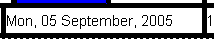
The following example shows the data without a label:
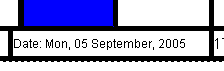
The following example shows the data with a label:
-
Click OK or Apply to apply the changes to the cell. The changes are applied whether or not the View | Redraw Dynamically toggle is set.
Related topics and activities:
